

GEOVIA GEMS tip – Using Bucket Transfer tool to setup Offset Display Mode for GEOVIA PCSLC

By @Thirusha PILLAY GEOVIA
When working with a sub level caving project, it can be difficult to graphically view rings on all levels.
Applying an offset display to the rings can be very useful as the rings from each level are spaced next to each other in a plan view. The offset display mode is commonly used to view the mining sequencing and how rings are depleted when running the schedule
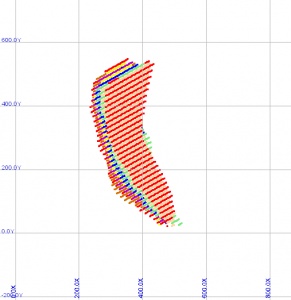
Today’s tip will outline how to setup an offset display for rings using the bucket transfer tool. The images below show rings from multiple levels displayed in a plan view with and without offset display.
Without offset display

With offset display on

Steps to setup offset display mode:
1. The Sector or Group field in the ring properties can be used to identify each level. In this example the Sector field contains the level name.
2. Create an Excel sheet with the X and Y offset values defined. These values represent the position of the display in the X direction and Y direction.

3. Import the values as a bucket using the Transfer Bucket Data between Workspace and Excel tool.
a. Select PCBC > Buckets > Transfer Bucket Data between Workspace and Excel.
b. Select the Excel file and worksheet and select the option “Get data from Excel”.

4. Select the workspace to import the bucket data into.

5. Set up the mapping, which links the workspace fields to the Excel columns. In this example the Ring Sector name will be matched to the Sector column in the Excel column.
a. Move Sector, OFFSETX, and OFFSETY over to the right hand side.
b. Select “Update draw points with value in field”.
c. Select the Sector field and the Sector column in excel.
d. Select “Get Data”.

6. Check bucket data in the BData workspace
a. Select Workspace > Start Data Editor

7. Enable Offset keywords in the SETUP Advanced Profile
a. Right click on the caving area > Select SLC Area Properties
b. Select the SETUP Advanced profile and enable the OFFSETX and OFFSETY keywords. Make sure the name of buckets match the name in the BData workspace.


8. Switch on the Offset Display mode
Go to the Display tab on Project View Area and select the check box to “Use offsets when displaying data”

Note: Make sure to end section view, if you have a vertical section active. Then go to 2D to view result.
The images below display rings with the offset display switched on.
