Whittle tip – How to merge Block Models

By @Shoaib ZIA
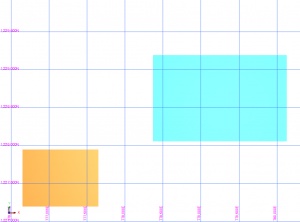
In today’s post I will answer a common question raised in GEOVIA Whittle – How to merge two or more block models into a single framework?
This task is often utilized in pit optimization workflows to merge two or more block models, for example if ore from two/more different locations goes to the same process plant.

• First of all import your block models separately in to GEOVIA Whittle as normal to generate *.MOD and *.PAR files or use Surpac export option to Whittle
• Make sure that both block models have the same block size or re-block them in GEOVIA Whittle
• Invoke the function from Tools > Merge Models

Select the required *MOD and *PAR files and fill the required field

Select the “adjust frame work tab” to make sure that there is no “Model Lost”

Check the box “Import on completion”, it is also possible to import the files later using Import options in Whittle
Use “Check Data” box to make sure that data is valid

Make sure in next tabs that all the parameters are correct.
After the completion of import, both block models will be merged in to single block model and the optimization workflow can be imitated.

Do not forget to validate the numbers against the original block models before running optimisation and scheduling. You can use Whittle LOM scheduling tools to create strategic schedule using one of available scheduling algorithms. It is required to have Multi-Mine module to run this function.
